How to Use MCP to Test Code Directly From Your IDE
 Rui Li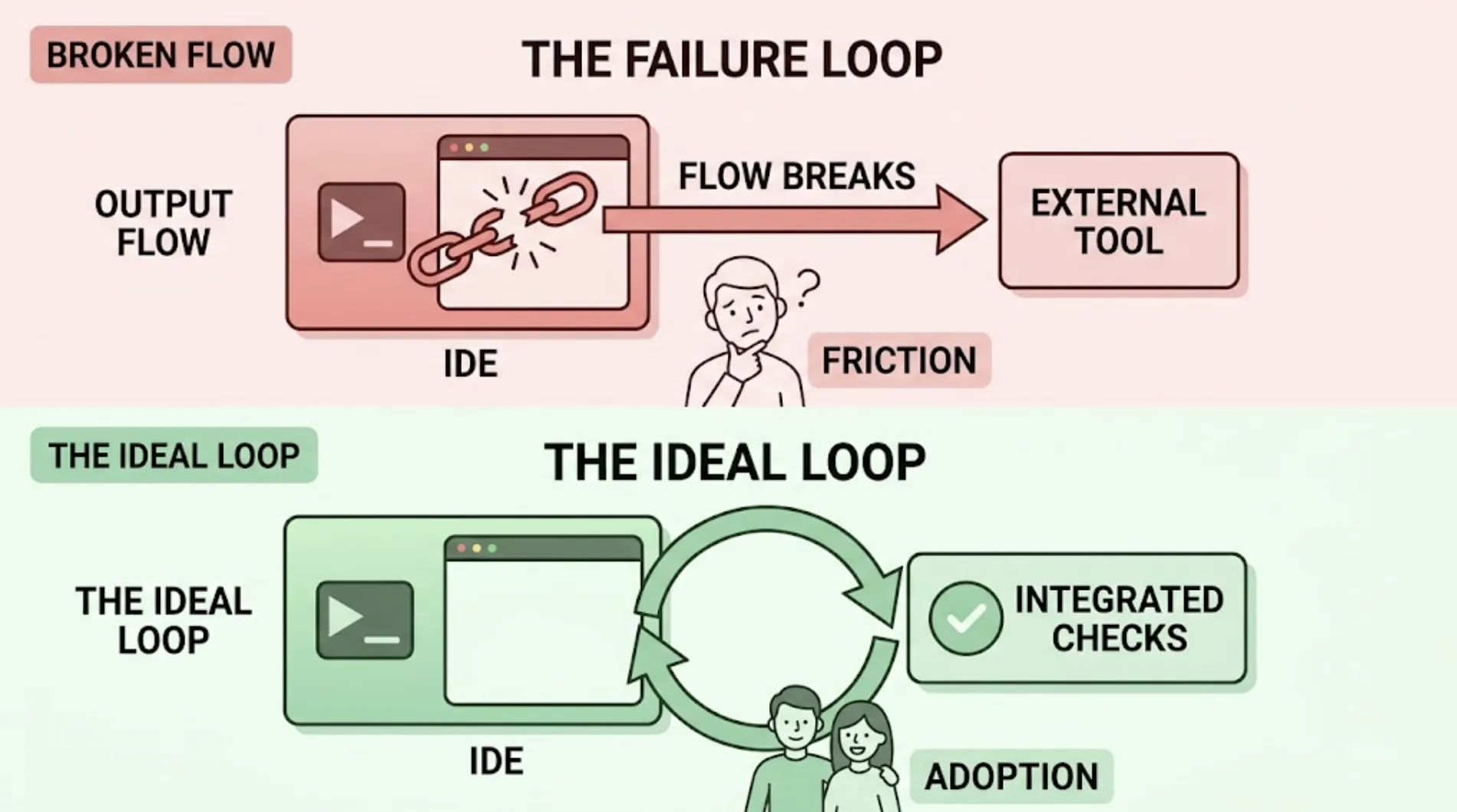
Switching tools to test something you just built is friction, and friction is exactly what gets skipped when you're moving fast under a deadline. The Model Context Protocol removes that switch entirely, letting ai agent testing happen from the same window where you wrote the code.
What MCP actually does here
MCP is an open standard that connects your IDE's AI assistant to external tools and services. For testing specifically, it means TestSprite's testing engine becomes something your coding agent can call directly, the same way it might call a linter or a file search, instead of a separate standalone application you open, configure, and check back on later.
How TestSprite uses MCP specifically
“Other verification tools read your code and guess. TestSprite opens your app and uses it.”
The MCP Server connects Cursor, Claude Code, Windsurf, VS Code, Trae, and other MCP-compatible IDEs directly to TestSprite's own testing engine. One instruction, "help me test this project with TestSprite," triggers the full pipeline: exploring your live application, generating tests grounded in what it finds, executing them in a cloud sandbox, and returning results to the same chat window where you wrote the code.
Setting it up
Install the MCP Server. Installation takes a few minutes total: get an API key, add the server to your IDE's MCP configuration, and confirm it's connected.
Confirm your application is running. TestSprite tests the live product, not just the source files, so point it at a local dev server, staging environment, or preview deployment before triggering anything.
Trigger testing with natural language commands. No separate command syntax to memorize or documentation page to reference. Describe what you want tested, or use the default instruction, and the agent handles the rest.
Review results without ever leaving your editor. Failures come back with the specific step, a screenshot or recording, and a suggested fix, structured so your coding agent can act on it directly in the same session.
Setting up MCP for the first time
The setup itself is meant to be a one-time cost that pays off on every single session afterward. Get an API key from your TestSprite account, add the server to your IDE's MCP configuration with a short JSON snippet, and confirm the connection by checking that TestSprite's tools appear in your IDE's available tool list. Most IDEs that support MCP show a green status indicator or similar confirmation once the server loads successfully, which is the signal that everything after this point works through natural language instructions rather than further configuration.
A detail worth knowing upfront: some IDEs run their AI assistant in a sandboxed mode by default, which can limit what an MCP server is able to do on your machine. If TestSprite's MCP tools seem to install correctly but don't behave as expected once you try using them, checking your IDE's sandbox or permissions settings is usually the first thing to look at before assuming the installation itself failed somewhere.
What this changes compared to a separate testing tool
A testing tool that lives outside your IDE requires you to finish a coding session, switch context, configure or navigate to the tool, run tests, and then switch back to interpret results and make changes. Each of those transitions is a place attention drops and testing gets deferred, sometimes indefinitely. MCP collapses that into one continuous session: write code, test it, see results, fix issues, all without your hands leaving the keyboard or your focus leaving the editor.
This isn't just a convenience difference. Context switching has a real cost that's easy to underestimate: every time you leave your editor to check a separate tool, you're not just spending the seconds it takes to switch windows, you're also spending the time it takes to reload the mental context of what you were working on when you come back. Over a full day of AI-accelerated coding sessions, those small interruptions add up to a meaningful fraction of lost focus, and MCP removes the interruption entirely rather than just making it faster.
Where this matters most day to day
The value compounds most on the smallest, most frequent changes, the ones easy to skip testing on entirely because switching tools feels disproportionate to a five-line fix. When testing is one instruction away in the same window, there's no longer a meaningful cost trade-off between testing a small change and not bothering, which is exactly the trade-off that leads to untested code accumulating in the first place.
Think about how this plays out over a typical week. A developer making a dozen small changes a day, each one arguably too minor to justify opening a separate testing tool, accumulates a dozen untested changes daily if testing has any friction attached to it at all. The same developer with testing one instruction away in the same window has no reason to skip it, since the cost of testing a five-line change and the cost of testing a five-hundred-line change both round down to roughly the same thing: typing one instruction and waiting for the result.
Conclusion
Testing that requires leaving your IDE competes with the momentum of an AI-accelerated coding session, and momentum usually wins, which means testing loses. MCP removes that competition by making ai agent testing a native part of the same environment where the code gets written.
TestSprite's MCP Server works with Cursor, Claude Code, Windsurf, VS Code, and Trae. Install it for free and test your next change without switching tools.
What to check if something doesn't connect
If the MCP Server doesn't appear in your IDE's tool list after installation, the most common causes are a Node.js version below the required minimum, an incorrectly formatted configuration entry, or an IDE-specific sandbox setting blocking the connection. Checking Node's version with a quick command-line check and comparing your configuration against the exact format in the setup docs resolves most first-time connection issues without needing to reinstall anything from scratch.
Once connected, it's worth running one simple test as a quick sanity check before relying on the setup for real work: point it at a small, low-stakes part of your application and confirm results come back correctly in the chat window as expected. That quick confirmation is a lot faster than discovering a configuration issue partway through testing something that actually matters.