How Do I Install TestSprite MCP Server in Cursor?
 Zeshi Du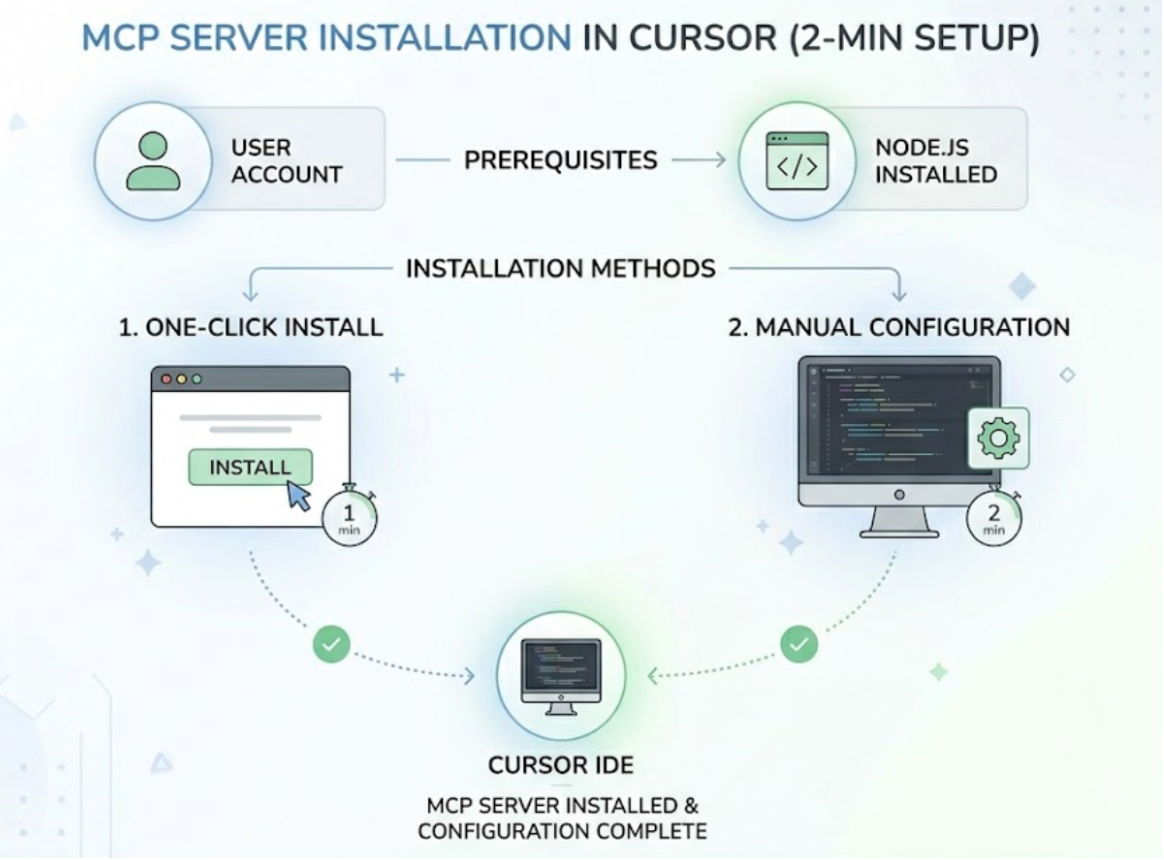
Installing the TestSprite MCP Server in Cursor takes about two minutes. There are two methods: a one-click installation from the documentation page, or a manual configuration that gives you full control over the setup. Both end up in the same place.
Before either method, two things need to be in place: a TestSprite account and Node.js installed on your machine.
Before You Start: What You Need
A TestSprite account. Sign up at testsprite.com. The free plan doesn't require a credit card and gives you 150 credits per month to start.
An API key. After signing in, navigate to your account settings and generate an API key. This is what the MCP Server uses to authenticate with TestSprite's backend.
Node.js. Run node --version in your terminal to check whether it's installed. If the command returns a version number, you're set. If not, install Node.js from nodejs.org before continuing. The TestSprite MCP Server requires Node.js to run.
Once you have these, the installation itself is straightforward.
Method One: One-Click Installation
The fastest path is the one-click installation available from the TestSprite documentation. Click the "Add to Cursor" button on the installation page, and Cursor opens a dialog with the server configuration pre-filled.
Enter your API key when prompted. Cursor adds the TestSprite MCP Server to your configuration automatically.
Check that the green dot appears on the TestSprite MCP server icon in Cursor's MCP settings panel and that the tools have loaded. When those show up, the installation is complete.
Method Two: Manual Configuration
If you prefer to configure things by hand, or if the one-click method isn't available in your version of Cursor, you can add the MCP Server manually.
Open or create your Cursor MCP configuration file. For a global installation that works across all projects, this is ~/.cursor/mcp.json. For a project-scoped installation, it's .cursor/mcp.json inside your project directory.
Add the following to the mcpServers section:
{
"mcpServers": {
"TestSprite": {
"command": "npx",
"args": ["@testsprite/testsprite-mcp@latest"],
"env": {
"API_KEY": "your-api-key"
}
}
}
}
Replace your-api-key with the API key from your TestSprite account. Save the file. Restart Cursor if it was already running, then check that the green dot appears on the TestSprite MCP entry and the tools have loaded.
One Important Cursor Setting to Change
Cursor introduced a Sandbox Mode for MCP tools that restricts what those tools can do. By default, this limits TestSprite's functionality in a way that prevents the testing pipeline from running correctly.
To fix this, go to Cursor Settings → Chat → Auto-Run → Auto-Run Mode and change the setting to either "Ask Every Time" or "Run Everything." Either option restores the full functionality TestSprite needs.
This is a one-time adjustment. Once it's set, it applies to all future TestSprite sessions in Cursor.
Running Your First Test
With the MCP Server installed and the Sandbox Mode configured, open the Cursor chat and type:
"Help me test this project with TestSprite."
That instruction triggers the full autonomous pipeline without any further configuration from you.
Other verification tools read your code and guess. TestSprite opens your app and uses it.
A fleet of parallel exploration agents visits your running application and navigates it the way real users would. They click through UI flows, fill in forms with real inputs, follow multi-step journeys from entry to completion, and observe what happens at every step. The agents build a structured map of the product's user journeys from direct interaction with the live application, not from reading the source files.
Results return to the Cursor chat window. When tests fail, the failure descriptions arrive in a format the Cursor coding agent can act on directly. The loop from code change to verified behavior to applied fix closes inside the same session.
A Scenario: Setup to First Finding in Twenty Minutes
A developer using Cursor to build a B2B SaaS product installs the TestSprite MCP Server following the steps above. The whole setup takes about ten minutes, including creating the account and getting the API key.
They point TestSprite at their staging environment and trigger the first session.
The exploration agents navigate through the product: sign-in flow, main dashboard, project creation, team invitation, and billing section. The developer watches the three-column interface showing live application previews on the left, the use-case flow graph in the middle, and per-agent interaction detail on the right.
In the first session, the agents find that the team invitation flow creates invitations correctly and sends email notifications, but the invited user's acceptance flow doesn't grant the correct role. The acceptance handler reads the role from the invitation record, but a recent Cursor session changed how invitation records are structured without updating the acceptance handler. The new user lands in the workspace with a Viewer role instead of the Member role specified in the invitation.
No unit test would catch this. No code review would surface it. The agents caught it by navigating the invitation flow the way a real user being invited to a workspace would run it, from invitation to acceptance to checking their own workspace role.
The failure description arrives in the Cursor chat. The coding agent identifies the acceptance handler's outdated role lookup and applies the fix in the same session. The developer runs TestSprite again to confirm. Twenty minutes from starting setup to having a fixed regression.
Conclusion
Installing the TestSprite MCP Server in Cursor takes two minutes. You need a TestSprite account, an API key, and Node.js. Choose one-click installation from the documentation or add the configuration to your MCP JSON file manually. Change Cursor's Auto-Run Mode setting to restore full MCP functionality.
After that, one instruction starts the full testing pipeline: exploration agents navigating your live application like real users, frontend and backend coverage in a single session, and structured failure information returning to the Cursor chat where your coding agent can act on it directly.
Install the TestSprite MCP Server and run your first test session in Cursor today.