How Do I Get Started with TestSprite?
 Zeshi Du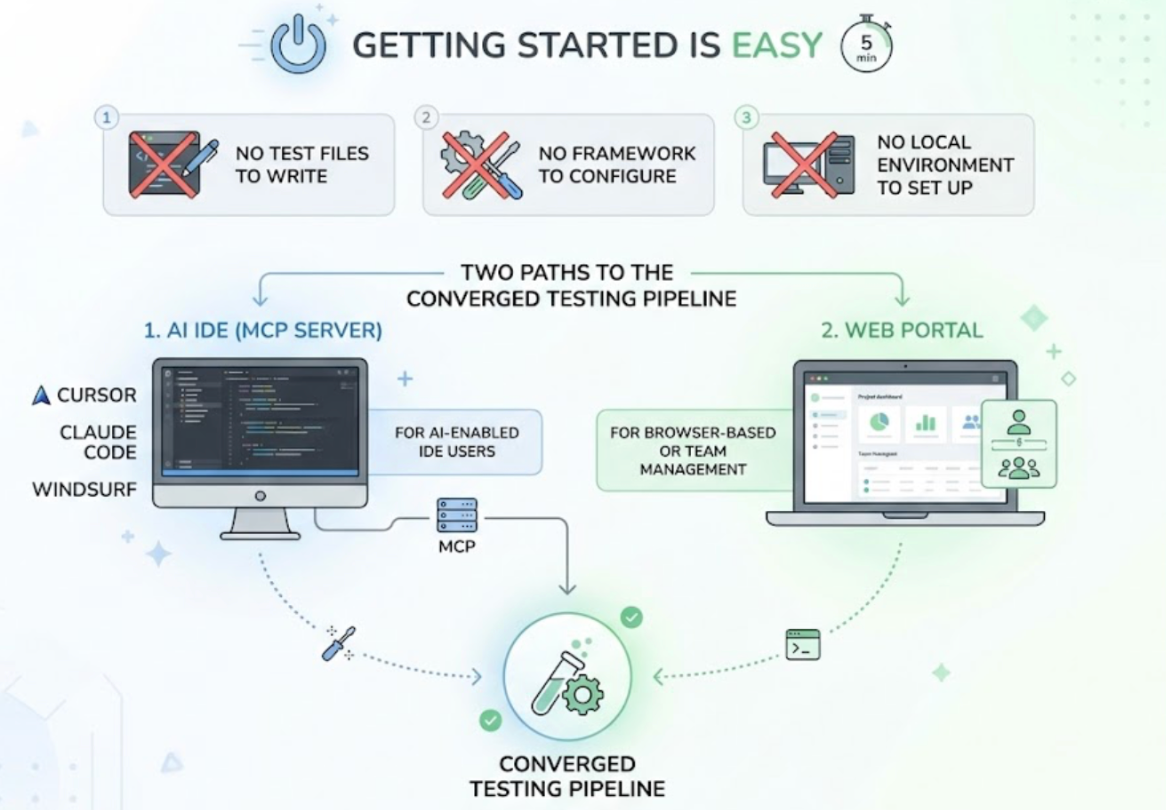
Getting started takes about five minutes. No test files to write, no framework to configure, no local environment to set up.
There are two paths in: through your AI IDE via the MCP Server, or through the Web Portal directly. Most developers using Cursor, Claude Code, or Windsurf start with the MCP Server. Developers who prefer a browser-based interface or want to manage projects at a team level start with the Web Portal. Both paths converge on the same testing pipeline.
Here's how each works.
Path One: Getting Started Through Your AI IDE
If you're using Cursor, Claude Code, Windsurf, VS Code, or any AI IDE that supports the Model Context Protocol, this is the fastest way in.
Step 1: Create a TestSprite account. Sign up at testsprite.com. The free plan doesn't require a credit card. You'll get 150 credits per month that refresh automatically.
Step 2: Install and configure the MCP Server. Follow the setup instructions at docs.testsprite.com. The configuration adds TestSprite to your IDE's MCP server list. This is a one-time setup that takes a few minutes.
Step 3: Make sure your application is running. TestSprite tests the live application, not the source files. Point it at your staging environment, your local development server, or a preview deployment. Wherever you'd normally check that something works before shipping.
Step 4: Type one instruction in the IDE chat.
"Help me test this project with TestSprite."
That instruction kicks off the full pipeline. The exploration agents visit the running application and start navigating it.
Other verification tools read your code and guess. TestSprite opens your app and uses it.
You don't have to do anything else. The agents explore, generate test cases, execute them in the cloud sandbox, and return results to the same chat window. Depending on the size of your application and the number of flows, the first full session typically completes in minutes.
Path Two: Getting Started Through the Web Portal
If you prefer a browser-based interface, or if your team wants to manage test plans, schedules, and project history in one place without requiring everyone to configure a local IDE integration, the TestSprite Web Portal is the entry point.
Step 1: Create an account at testsprite.com. Same free plan, same 150 credits.
Step 2: Create a project in the Web Portal dashboard. Give it a name and provide the URL of your running application.
Step 3: Configure authentication if your application requires login. TestSprite supports password endpoint authentication, OAuth refresh tokens, and AWS Cognito. This configuration is set once per project and handled automatically before every subsequent test run.
Step 4: Start a test session. From the project view, initiate exploration. The agents begin navigating the application, building the user journey map, and generating test coverage.
The Web Portal is also where you manage test plans across multiple projects, view run history, set up scheduled regressions, track quality trends over time, and invite team members with role-based access.
What Happens on the First Session
The first time TestSprite runs against your application, the exploration phase does most of the work.
The agents visit the live application and navigate it the way a real user would. They discover the product's interactive surfaces: forms, navigation flows, multi-step journeys, authenticated sections, API-dependent screens. They click through what they find, fill in inputs, follow paths, and build a structured map of what the product does.
From that map, they generate test cases grounded in observed product behavior. Not assertions against functions or components in the source code. Descriptions of what a user does and what the product should deliver at the end of that sequence.
The first session gives you a baseline. On subsequent runs, after a coding session makes changes, the agents re-run the flows and surface any divergences from that baseline.
Connecting to CI
If you want automated coverage on every pull request, the GitHub Actions integration extends the same pipeline into CI.
Adding TestSprite to your GitHub Actions workflow means every PR triggers a test run against the live application. Results post as PR comments. Reviewers see product-layer coverage alongside the diff before anything merges.
The setup documentation at docs.testsprite.com covers the GitHub Actions configuration. It's a short workflow file addition to your existing CI setup.
A Scenario: First Session, First Finding
A developer has been building a SaaS product with Cursor for three months. They've never had a formal test suite. They've been verifying with quick manual walkthroughs, and they've had one production incident per month on average.
They configure the TestSprite MCP Server in Cursor, point it at their staging environment, and trigger the first session with one instruction.
The exploration agents navigate the product. The developer watches the three-column interface: live application previews on the left, the use-case flow graph in the middle, per-agent detail on the right. They see the agents working through the signup flow, the onboarding wizard, the main product dashboard, the settings page, and the billing section.
In the first session, the agents surface two failures.
The first is in the billing section. The upgrade flow completes and shows a confirmation screen, but when the agents navigate to the account settings immediately afterward, the plan displayed still shows the free tier. The upgrade API call succeeded. The account settings screen reads from a cached value that didn't update.
The second is in the main dashboard. When the agents apply a date range filter, the chart updates to reflect the new range. The summary cards below the chart still show totals from the default range. The filter only partially applied.
Neither failure was visible in the code. Neither would have appeared in a code-inspection test. Both were discovered by navigating the product the way a user would and checking whether the state was consistent after each action.
Both failure descriptions arrive in the Cursor chat in structured form. The developer reviews them, applies fixes in the same session, and runs TestSprite again to confirm. The first session took under twenty minutes, including setup.
A Few Things Worth Knowing Before You Start
You need a running application. TestSprite tests the live product. If you're working on a new project that isn't deployed anywhere yet, set up a local server or use a preview deployment. The agents need somewhere to navigate.
Start with the flows that matter most. For your first session, having your staging environment reflect the core user journeys (signup, main feature, settings, any critical paid flows) gives the agents the most useful surface to explore.
Results get better across sessions. The first session builds a baseline. Subsequent sessions run the same flows, compare against the baseline, and surface what changed. The coverage deepens as the agents learn the product over multiple runs.
The free plan is a real starting point. 150 credits per month is enough to run regular sessions on a focused product. You can evaluate whether TestSprite fits your workflow without paying anything.
Conclusion
Getting started with TestSprite takes about five minutes. Create an account, connect through the MCP Server or the Web Portal, point it at your running application, and trigger the first session with one instruction.
What follows is the part that's different from most testing tools: exploration agents that navigate your live application like real users, discover the product's flows from direct observation, and generate tests grounded in what they found rather than what the code says should happen.
The first session surfaces the failures your current process misses. That's the fastest way to understand what TestSprite does.
Get started with TestSprite for free today.